How vGPU and OpenGL Acceleration Can Reduce RDP Lag and Display Stutter
GPU acceleration can improve an RDP workload when graphics rendering or supported frame encoding is the bottleneck. It cannot eliminate network propagation delay, repair packet loss, or fix every application freeze. Diagnose the stage that is slow before upgrading the desktop or changing graphics settings.
Users often call several different problems lag: slow typing, jerky window movement, low animation frame rate, blurry video, or an application that stops responding. Those symptoms need different checks. This guide turns the broad complaint into a testable question.
Follow the frame from application to screen
The application generates content, the remote-display stack captures and encodes it, the network transports updates, and the local client decodes and displays them. The guest GPU may participate in rendering or encoding when the hardware, driver, and remote-session stack support it. Your local device still has work to do.
Microsoft’s Azure Virtual Desktop documentation separates application rendering from remote-frame encoding. That is a useful diagnostic model, but Azure-specific VM sizes, drivers, codecs, and policies are not automatically applicable to a standard ClovRDP session. Confirm the supported configuration before changing it.
| Stage | Possible symptom | Useful check |
|---|---|---|
| Application rendering | The application itself reports low frame rate or missing graphics features | Its active renderer, supported APIs, CPU load, memory, and graphics allocation |
| Remote-frame encoding | The app runs smoothly but rapid screen changes are expensive to transmit | Supported encoder path, host resources, and remote-display configuration |
| Network transport | Delayed input, uneven updates, or disconnects | Route, congestion, delay variation, and loss |
| Client display and decoding | One local device struggles while another works better | Client version, local load, display configuration, and supported decoding |
Step 1: reproduce the problem with a small baseline
Record the client, connection type, screen resolution, number of monitors, application version, and test time. Compare typing in a simple text editor, moving an ordinary window, opening a local file, and running the affected graphics scene. Determine whether the issue appears everywhere or only in one application.
Keep the same scene and settings for each comparison. A light demo that runs well does not prove a larger production project will. Conversely, a single application defect does not prove the entire RDP connection is slow.
Step 2: inspect the rendering path and resource pressure
Check the application’s graphics information and available vendor diagnostics. In Windows, review the display adapter for driver errors and Task Manager’s CPU, memory, and GPU information where available. Some virtualized environments expose different counters, so missing utilization data is not proof that no graphics resource exists.
If an application uses a software renderer, determine whether it is an intentional fallback or a sign that a required driver or feature is unavailable. Microsoft’s WARP documentation describes a software Direct3D rasterizer; it should not be confused with hardware OpenGL support. Match the application’s required API rather than treating all graphics labels as equivalent.
Step 3: reduce unnecessary display work
Compare one monitor at a practical resolution with a large multi-monitor session. Reduce optional animations or background effects when they are irrelevant to the task. Keep text readable and retain the original connection profile so the change can be reversed.
Microsoft’s RDP bandwidth guidance explains the relationship between display content and traffic. A static document and full-screen motion do not create the same workload. Lowering display demand is a diagnostic experiment, not a guarantee of a particular frame rate.
Step 4: separate the two network paths
Your connection to the desktop is different from the desktop’s connection to a website. If local applications inside the guest respond normally but one website is slow, examine the target and outbound route. If every action feels delayed, investigate the operator-to-desktop path and host load first.
Compare an approved wired connection with Wi-Fi where practical and identify competing local transfers. Keep required organizational tunnels and security controls in place. A premium residential exit cannot compensate for a congested local connection or guarantee that the desktop is geographically close to the operator.
Step 5: apply only supported graphics changes
Ask the provider which rendering and encoding paths are supported by the guest driver and client combination. Use the approved driver and schedule changes with a recovery console available. Do not apply arbitrary registry bundles, force unsupported codecs, or disable security features for an unmeasured speed claim.
Where hardware encoding is available, verify that it is actually used and compare the same workload afterward. A GPU that renders an application does not necessarily expose a supported encoder to the remote-display stack. Keep a rollback plan if image quality, stability, or resource usage worsens.
When an upgrade is justified
Upgrade graphics capability when the required API or measured rendering workload needs it. Upgrade memory when the guest is under memory pressure. Investigate host storage or CPU allocation when those are saturated. Work on routing or client configuration when the desktop renders correctly but interaction remains delayed.
ClovRDP’s Windows product page advertises an optional GPU add-on for compatible workloads. Confirm availability, the actual assignment method, driver support, and pricing on the selected residential plan. No evidence supports promising that every budget and premium plan includes acceleration or that a GPU creates zero latency.
Keep testing and security requirements visible
Verify applicable Windows 10 ESU coverage or use a supported OS, and keep NLA, certificate validation, and endpoint protection enabled. Our general latency guide covers non-graphics symptoms.
Arrange larger tests before purchase. The refund policy excludes Cheap Residential and limits eligible requests to 12 hours and 100 MB usage, with issue review and non-refundable provided Windows installation charges. Confirm the specific delivery-time IP provision separately. Video and graphics tests are not automatically a zero-risk trial.
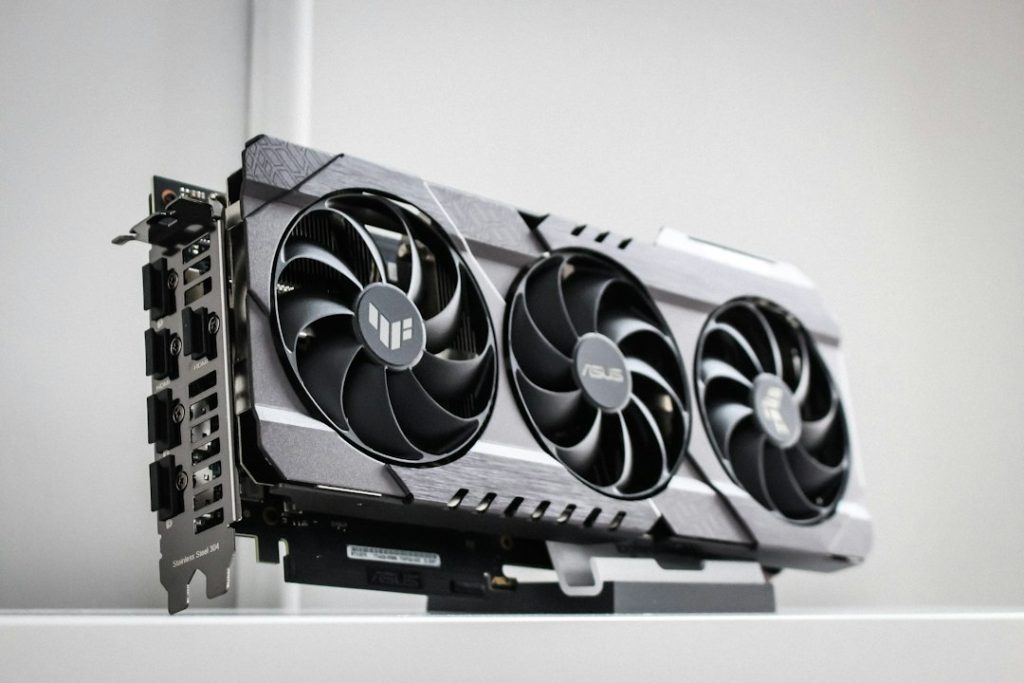
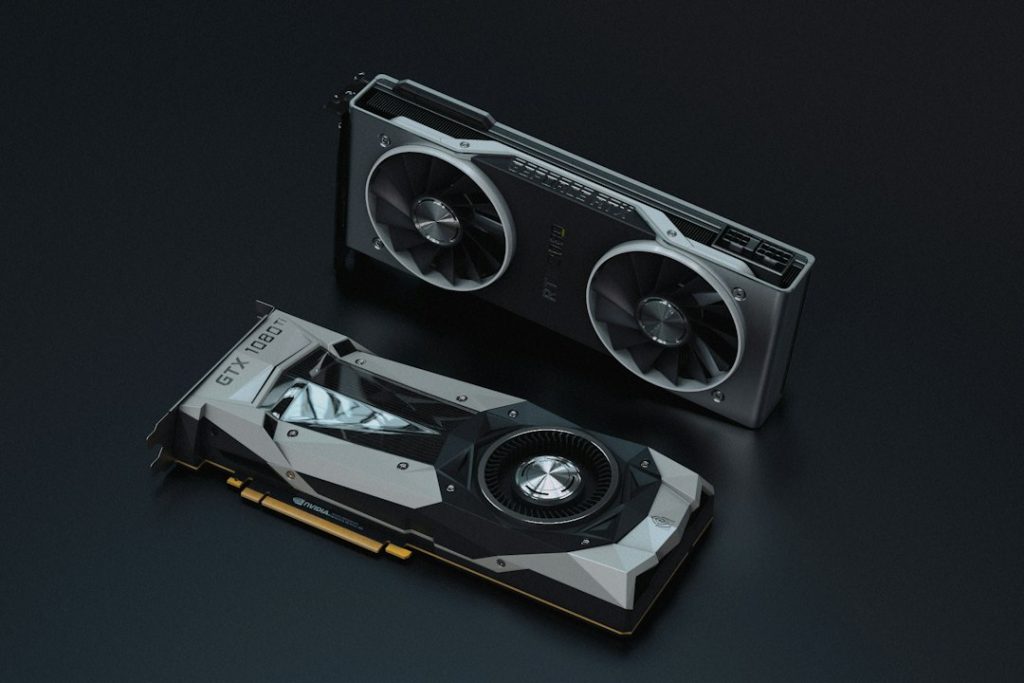
Illustrative hardware photograph by Anthony Roberts on Unsplash.
Upgrade the stage that is actually slow. Compare ClovRDP’s graphics-capable configurations using a repeatable workload and confirm the supported settings before ordering.