How to Transfer Large Files to a Windows RDP Safely
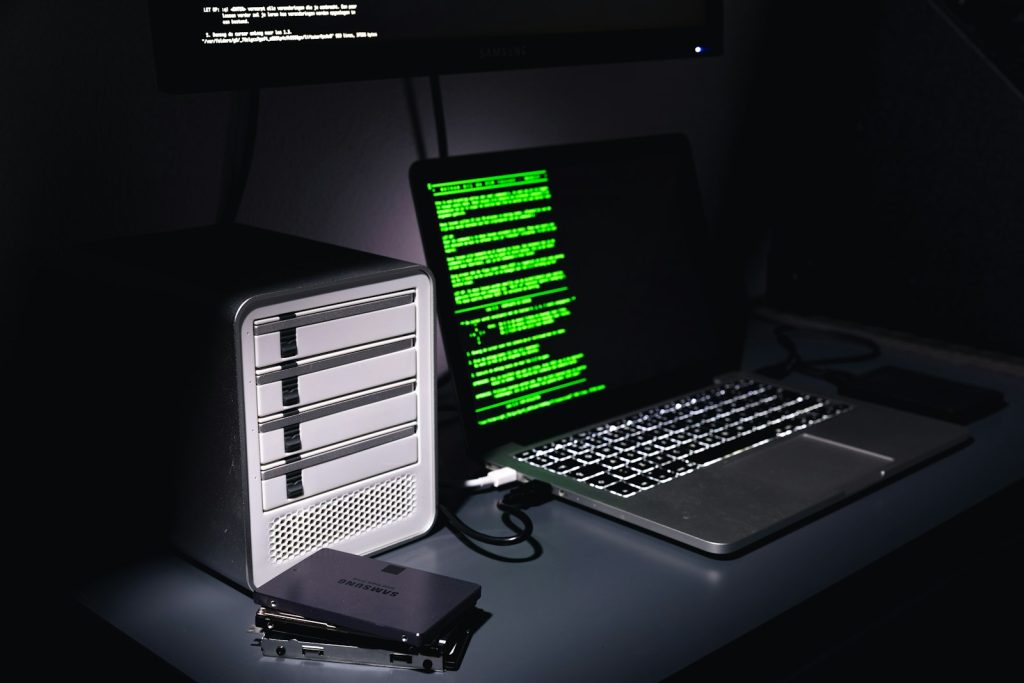
The best way to transfer a large file to a Windows RDP depends on where the file starts, where it must finish, and which transfer channels are approved. Copying through a redirected drive can be convenient for an occasional document. A managed SFTP or organizational storage workflow can make more sense for repeat transfers that need clear ownership and an audit trail.
Start by writing down the source computer, destination desktop, file size, data owner, and required retention period. Do not upload client documents to a personal file-sharing account simply because that route is faster. A remote desktop is a place to work, not automatic permission to move data between organizations.
Choose the route before starting the transfer
| Situation | Practical starting point | Check first |
|---|---|---|
| One file already on your laptop | An approved redirected drive | Only the necessary drive is exposed |
| Files already on a managed server | SFTP from that server to the remote desktop | Verified host identity and least-privilege credentials |
| A team works in an approved document platform | The platform’s authenticated download or sync workflow | Correct organization, folder permissions, and retention |
| A repeatable unattended transfer | A supported transfer job with logs and retries | Authentication, overwrite rules, and recovery behavior |
These are planning choices rather than promises of a particular throughput. Compare the same permitted sample file over the candidate routes before committing to a large migration. Record elapsed time and destination size instead of relying on a progress bar’s changing estimate.
Use selective drive redirection for occasional copies
In the built-in Windows Remote Desktop Connection client, open Show Options, then Local Resources, then More under local devices and resources. Select only the drive needed for the transfer when policy allows it. Reconnect and inspect the redirected drive inside the remote session. Microsoft’s RDP property reference documents drive-redirection controls; the destination administrator can restrict them.
Create a clearly named staging folder on the remote desktop’s own storage, such as a project-specific folder under Documents. Copy the file into that folder before starting a long operation on it. Confirm that you are not accidentally opening the original on the redirected laptop drive. Save a new test document in the destination and locate it again after reconnecting.
Drive redirection can expose more than the folder you intended. Review what appears in the remote file browser and remove the redirection from the saved connection profile after the transfer. Do not enable every drive, future USB device, and clipboard format by default. A text-copy problem should be investigated separately with the clipboard troubleshooting guide.
Use SFTP only when an approved SFTP service exists
RDP credentials do not imply that the desktop also runs an SFTP server. Do not open an additional inbound service just to avoid learning the existing transfer route. A common design is to run an approved SFTP client inside the Windows desktop and download from an organization-owned file server that already provides that service.
For WinSCP, select the approved protocol and server, authenticate with the authorized account, and verify which panel is the remote server and which is the Windows computer running the client. Navigate to the intended directory before copying. The official WinSCP transfer guide explains the panel-based workflow. Keep an untouched source copy until the destination has been validated.
On a first connection or after a host-key warning, obtain the expected fingerprint through an independent trusted channel. A matching server name alone is not sufficient evidence to accept an unexpected key. Follow WinSCP’s host-key verification guidance; never turn off verification merely to make an unattended transfer succeed.
Prepare storage and avoid accidental overwrites
Check free space at the destination and any intermediate staging location. An archive may need room for both the compressed file and its extracted contents. Use a new, date-stamped destination directory for the first transfer instead of copying directly over an active project. Agree whether existing files should be skipped, versioned, or replaced before enabling a repeat job.
For a folder containing many small files, compare a permitted archive with the original directory transfer. An archive can simplify completeness checks, but it is not automatically encrypted or safe to open. Keep the folder structure, application compatibility, and data-classification requirements in mind. Do not send a decryption secret alongside the archive through the same unapproved channel.
Verify the result rather than trusting a completed progress bar
Compare the expected file count and sizes, open a representative non-sensitive document, and confirm that the application can use the destination copy. For a critical single file, compute a SHA-256 hash on the source and destination. In PowerShell, a read-only example is Get-FileHash -LiteralPath 'C:\Transfer\project.zip' -Algorithm SHA256. Substitute the real path on each computer and compare the complete result.
Microsoft documents the command in the Get-FileHash reference. Matching hashes are useful evidence that the compared contents agree; they do not establish that an unknown download is trustworthy. Obtain the source from an authorized owner and keep the reference hash separate from an untrusted transfer when authenticity matters.
Close the transfer cleanly
Record what moved, who approved it, the final path, and whether verification passed. Remove temporary sharing links and unnecessary drive redirection. Retain or delete staging files according to the agreed policy rather than leaving duplicate client archives scattered across Downloads, Desktop, and personal cloud folders.
For a new ClovRDP service, read the current refund policy before conducting a large transfer or benchmark; usage conditions can affect eligibility. For an existing desktop, ask ClovRDP support to confirm the approved transfer options and storage requirements for your specific plan. This guide does not imply that backup space, SFTP hosting, or third-party storage licenses are included.
Featured photograph: Rohan on Unsplash. Technical references reviewed on 17 October 2026.