Virtual GPU Support in Residential RDPs: Why OpenGL & DirectX Acceleration Matter
A virtual GPU gives a virtual machine access to graphics capabilities through a supported virtualization arrangement. OpenGL and DirectX are application-facing graphics technologies, while RDP transports the remote desktop to your screen. These layers work together, but support for one does not automatically prove that the others meet your application’s requirements.
For a designer, developer, or analyst, the benefit of a suitable graphics-enabled desktop is practical: a compatible application can use hardware acceleration rather than an unsuitable fallback. The buying decision should be based on the required API, driver, memory, remote-session behavior, and measured workload—not simply a GPU badge.
Four graphics terms buyers should separate
| Term | Meaning | What to verify |
|---|---|---|
| Virtual GPU or GPU assignment | A method of exposing graphics resources to a guest | Technology, supported guest, allocation, driver, and licensing |
| OpenGL support | An implementation of the graphics API used by some applications | The required version and extensions inside the actual application |
| DirectX and Direct3D | Windows multimedia and graphics technologies | Required Direct3D feature levels and compatible driver behavior |
| Hardware video encoding | Using supported hardware to encode frames for transmission | Whether the remote-display stack actually uses the available encoder |
Different products implement GPU sharing or assignment differently. NVIDIA’s vGPU documentation, for example, covers supported platforms, guest drivers, profiles, and licensing. It is a useful illustration of the dependencies—not evidence that a particular ClovRDP plan uses NVIDIA vGPU.
Why a basic desktop may struggle with graphics-heavy software
An application can fail to initialize a required graphics feature, use a slower software path, or exhaust the resources available to it. Those are possibilities to diagnose, not proof that every headless or non-GPU desktop must lag or crash. Many ordinary browser and office tasks work without a dedicated graphics allocation.
Software rendering is also a deliberate compatibility tool. Microsoft’s WARP documentation describes a software rasterizer for Direct3D. Its presence does not establish hardware acceleration or OpenGL capability. A working desktop image is therefore weaker evidence than an application reporting its actual rendering backend.
Rendering and remote-display encoding are separate jobs
The application first generates frames. The remote-display stack captures and encodes the desktop, the network carries updates, and the client displays them. A GPU can help supported stages, but it cannot eliminate geographic network delay or repair packet loss.
Microsoft’s Azure Virtual Desktop graphics guide explicitly distinguishes application rendering from remote-frame encoding. The distinction is useful for troubleshooting, but its Azure-specific VM sizes, drivers, and codec prerequisites must not be copied into a generic hosted RDP configuration without checking applicability.
Verify support inside the session you will actually use
- Record the application’s current Windows, graphics-API, driver, and memory requirements.
- Ask the provider for the GPU assignment method, allocated graphics resources, supported guest driver, and applicable license arrangement.
- Connect through the intended RDP client and inspect Device Manager for driver errors. Use the application or vendor diagnostic tool to confirm the active rendering backend.
- Run a representative authorized project with agreed test data. Observe application performance separately from how smoothly updates reach the local screen.
- Test reconnect and restart behavior during an approved maintenance window, then record the working versions and settings.
Windows DirectX diagnostics can help inspect Direct3D-related information, but a displayed DirectX runtime version does not prove every hardware feature level or an application’s required OpenGL extensions. Use the relevant application-level check. Do not infer compatibility from a GPU model string alone.
Match the graphics requirement to the workload
For 3D work, ask about the required API features and usable graphics memory. For browser visualization, inspect the browser’s active graphics backend and test the actual scene. For video, distinguish decoding the source, rendering it, and encoding the remote session. Each stage may have different hardware and driver requirements.
A high-resolution multi-monitor session can increase display workload even when the application is simple. Start with a practical display configuration and compare one variable at a time. Avoid promising a universal frame rate without a named application, scene, resolution, host allocation, and client setup.
What ClovRDP currently advertises
ClovRDP’s Windows 10 Pro RDP page advertises an optional GPU add-on for compatible GPU-accelerated and OpenGL workloads. Confirm availability on the exact residential product and resource tier you are ordering. The public description does not establish a universal GPU model, vGPU profile, API version, or GPU inclusion across all budget and premium plans.
For Windows 10 in 2026, confirm applicable ESU coverage or a supported OS alternative. Driver support and application compatibility must be checked separately from OS security coverage. A familiar desktop should still have a documented maintenance path.
Arrange an acceptance test that fits the purchase terms
Graphics packages and test projects can involve substantial downloads. ClovRDP’s refund policy excludes Cheap Residential; eligible requests have a 12-hour deadline and 100 MB usage limit, issue review, and non-refundable provided Windows installation charges. Confirm the Residential/Premium delivery-time IP guarantee’s scope and arrange any larger graphics test before purchase. This is not a zero-risk GPU trial.
For performance symptoms that are not graphics-specific, start with our RDP latency guide. A GPU should address a graphics bottleneck, not become the default answer to every slow session.
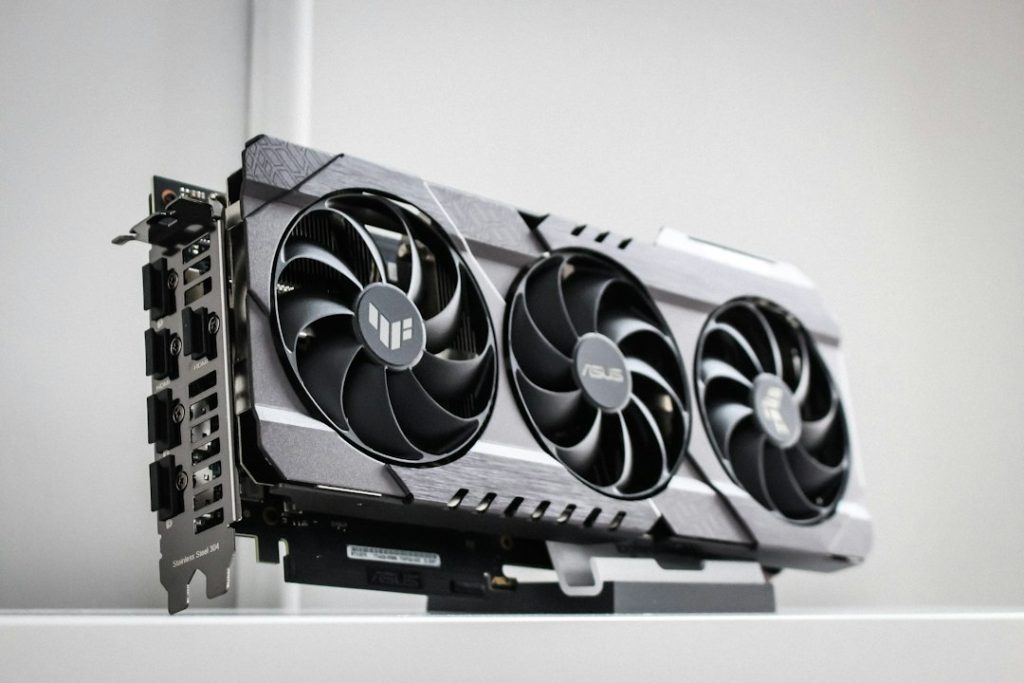
Illustrative hardware photograph by Anthony Roberts on Unsplash; not a depiction of the GPU supplied with a plan.
Choose graphics capability you can verify. Ask ClovRDP to confirm your application’s requirements, the available GPU configuration, and the acceptance procedure before ordering.