Print from Windows RDP to Your Local Printer Without Exposing It Online
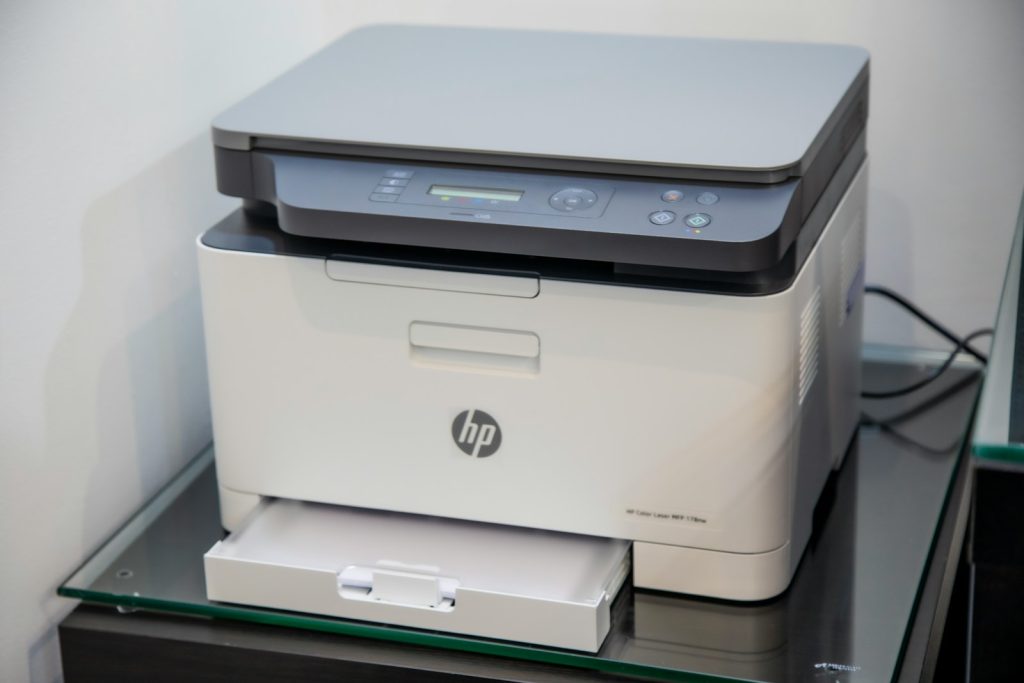
RDP printer redirection lets a remote application use printers available on your local computer when the client and administrator allow it. You should not need to publish a home printer’s management page or open its printing ports to the internet. Start with a printer that already works locally, then test the redirected route with a harmless page.
Confirm that the document may leave the remote environment before enabling printing. A printer in a shared office, hotel business center, or home workspace is a physical destination for the information, not merely another setting inside Windows. Follow the data owner’s rules about paper copies and their disposal.
Prove that local printing works first
On your own computer, print a short non-sensitive test document to the intended printer. Confirm the printer name, paper size, and physical output. If this fails, resolve the local printer connection, queue, or driver problem before investigating the remote desktop. RDP cannot compensate for a local test that never produces paper.
Record the printer model and driver version when support may need them. Do not install driver packages from search advertisements or unsolicited support links. Use the manufacturer’s official support route or your organization’s managed software system. Keep an unchanged copy of the test document so that subsequent comparisons use the same input.
Enable redirection in the approved connection profile
In the built-in Windows Remote Desktop Connection client, open Show Options and Local Resources. Enable Printers under local devices and resources when policy permits, save the correct profile, and reconnect. In the remote session, inspect the available printers before sending a job. Do not assume the previously selected default is still the right physical destination.
Microsoft’s printer-redirection documentation explains that the standard redirection setting can expose all printers available locally rather than a selectable single-printer subset. It also describes supported Easy Print behavior and the need for a working local driver. Review the product-specific guidance with your administrator; enabling a client checkbox does not override a restriction on the remote computer.
Send one clearly identifiable test job
- Open a simple remote text document containing a test label and timestamp, not customer information.
- Select the intended redirected printer explicitly in the application’s print dialog.
- Send one page and observe the remote and local queues where available.
- Collect the physical page and confirm that the label, orientation, and paper size match.
- Only after that test succeeds, try a representative approved document from the business application.
Keep the first test simple. A complex PDF with unusual fonts and finishing options introduces more variables than a short text page. If the basic test works but the business document fails, compare the application and document settings before changing the whole connection.
Use the queue location to narrow the problem
| Observation | Investigate next |
|---|---|
| The printer fails locally | Local connection, driver, paper, and printer state |
| It works locally but is absent remotely | Client support, saved profile, and effective redirection policy |
| A remote job never reaches the local queue | Session redirection and remote application behavior |
| The local queue receives the job but no page appears | Local printer and queue state |
| Only one application or document fails | Document format, application options, and a simplified test |
Cancel only your own clearly identified test job when cancellation is necessary. Do not empty a shared print queue or restart the spooler for everyone without authorization. Record whether a job is waiting, printing, or showing an error before removing it; otherwise you may erase the evidence support needs.
Keep an approved fallback without broadening access
If direct redirection is not permitted, ask whether an approved document-export workflow is available. Exporting a PDF and transferring it to an authorized local device can be an alternative, but only when the data owner allows that copy. It is not permission to use personal email or a public upload website.
Follow the safe transfer checklist, verify the destination, and remove temporary copies according to policy. Printing support does not imply that scanning, faxing, or every vendor-specific multifunction feature is also redirected. Test each required capability separately before relying on it for a deadline.
Close the workflow with a privacy check
Collect the paper immediately, check that no duplicate job remains queued, and disable printer redirection when it is no longer needed. Before changing locations, review which printers your local computer makes available. A remembered office printer should not silently become the destination for the next client’s document.
For ClovRDP support, provide the printer model, client version, local-test result, remote-test result, and a redacted queue error. Do not attach the confidential document itself unless an approved support process explicitly requires it.
Featured photograph: Mahrous Houses on Unsplash. Technical references reviewed on 17 October 2026.