Use Two Monitors with Windows RDP: Setup, Scaling, and Troubleshooting
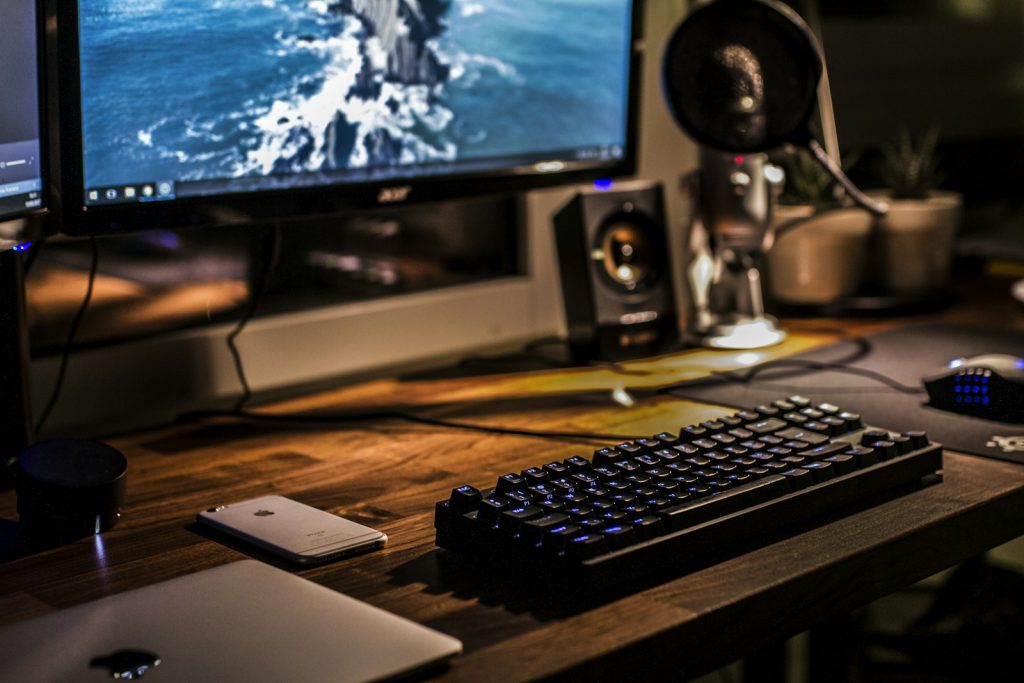
A dual-monitor RDP setup starts with a working local display arrangement and a client that requests multiple remote displays. It is not the same as stretching one application window across two screens. Get a single-monitor connection working first, then add the second display and test the applications you actually use.
This guide uses the built-in Windows Remote Desktop Connection client, also called mstsc. Other clients, browser-based desktops, and managed environments can expose different display controls. Confirm the capabilities of your client and remote Windows edition rather than treating every product called Remote Desktop as interchangeable.
Prepare the monitors on your own computer
Before connecting, open the display settings on your local computer. Confirm that both screens are detected and arranged as you physically use them. Move a harmless application window from one to the other and verify that the pointer crosses the correct edge. Record each screen’s resolution, orientation, and scaling percentage.
Keep a simple baseline for the first test. Use the normal recommended resolution of each monitor, avoid changing the docking setup during the connection, and note which screen is primary. When troubleshooting a mixed-resolution arrangement, compare it with a simpler configuration temporarily. Save the original settings so that the test is easy to reverse.
Enable multiple monitors in the connection you actually launch
- Save your remote work and disconnect from the current session.
- Open Remote Desktop Connection on your own Windows computer and select Show Options.
- On the Display tab, enable the option to use all your monitors for the remote session when available.
- Confirm the destination, save the intended connection profile, and reconnect.
- Open two harmless windows remotely, place one on each screen, and test maximizing, moving, and restoring them.
Microsoft also documents mstsc /multimon for a multi-monitor session and mstsc /l for listing local monitor identifiers in its mstsc command reference. The /span option has different layout requirements and behavior; do not substitute it automatically when you want separate remote displays.
A common administrative mistake is changing one saved profile and reconnecting through a different shortcut. Give profiles descriptive names, such as a service identifier followed by single-screen or dual-screen. Do not include a password in the filename or distribute a credential-bearing profile to colleagues.
Separate scaling from resolution
When text is too small, first determine whether the entire remote desktop or only one application is affected. A browser’s page zoom, an application’s own interface settings, and the desktop’s display settings are different controls. Record which setting you change and compare the same window before and afterward.
For an older application that looks blurry only on one screen, test it on the primary monitor and in a single-monitor connection. Do not immediately edit compatibility settings, change graphics drivers, and alter server policy together. A useful experiment changes one variable and produces a result that someone else can reproduce.
| Symptom | First comparison |
|---|---|
| Only one screen is used | The saved profile, client capability, and locally detected displays |
| Text is small everywhere | Local display settings versus remote desktop settings |
| One application is blurry | The same application on the other monitor and in a single-screen connection |
| Windows return to an unexpected position | The monitor arrangement before and after docking or reconnecting |
| Two screens feel less responsive than one | The same workload with one screen, without simultaneous downloads |
Test docking and reconnecting deliberately
Save work before changing a dock or unplugging a display. After a hardware change, confirm the local arrangement again and reconnect using the intended profile. Do not interpret a changed window position as lost application data. Locate the application and its saved document before trying a restart.
Keep a single-monitor fallback profile for working from a laptop away from the desk. Test the fallback before you depend on it. This gives you a known configuration for support and avoids repeatedly modifying your normal dual-monitor profile while traveling between work locations.
Measure the experience rather than buying an upgrade first
Choose a repeatable task, such as scrolling the same document and switching between two applications. Compare one monitor and two while keeping the client, network, and remote workload unchanged. Note whether the problem is input delay, image sharpness, a single application freeze, or a disconnected session. Those are different symptoms and should not all be labeled GPU lag.
A graphics add-on is not proof that every monitor arrangement or application will behave as expected. Share the display sizes, resolutions, client version, remote operating system, and comparison results with support. Use the connection-performance guide for broader latency symptoms, while verifying current operating-system support separately.
Before ordering a ClovRDP desktop for a multi-monitor workflow, confirm the intended client and application requirements. Request compatibility information for the exact service rather than assuming a product tier guarantees your screen layout. Keep a redacted record of the working profile so that future changes can be compared with a reliable baseline.
Featured photograph: Caspar Camille Rubin on Unsplash. Technical references reviewed on 17 October 2026.