Working on Upwork & Fiverr Safely Using a Residential RDP

A residential RDP can give a freelancer a persistent Windows workspace for permitted client work. It does not change the freelancer’s identity, residence, or eligibility to use Upwork or Fiverr. A stable working environment is useful; claiming that a dedicated IP guarantees account safety is not.
The practical attraction is continuity. You can return to the same project files, browser tools, and compatible desktop applications without making a personal laptop the only place your work exists. Used with clear permissions and a recovery plan, a remote workspace can simplify handoffs and reduce accidental mixing of personal and client data.
Start with the platform’s rules, not an IP promise
Upwork’s Trust and Safety guidance describes its account-protection and enforcement processes. Fiverr’s identity-verification guidance includes specific troubleshooting instructions, including turning off VPNs during verification. Neither should be replaced with a hosting provider’s general assurance that an address is safe.
Keep your profile and verification information accurate. Ask platform support about a remote-access arrangement that is unusual for your situation. A rented desktop in another country does not make that country your actual residence, establish local work authorization, or replace the identity-verification process.
What the workspace can—and cannot—do
| Need | Useful RDP capability | Separate requirement |
|---|---|---|
| Project continuity | Keep working files and compatible tools in one environment | Backups and a provider-independent recovery plan |
| Client separation | Organize project folders and browser profiles | Correct account roles and confidentiality controls |
| Remote access | Connect to a desktop from an approved client device | Secure credentials, permitted access location, and MFA where available |
| Account verification | Use the platform through a permitted environment | Accurate identity and official verification procedures |
| IP persistence | A provider may offer a documented persistence arrangement | Written confirmation; residential alone does not mean static or exclusive |
Set up an accountable freelance workspace
1. Confirm permission for client data
Review the client’s approved tools, access locations, and storage requirements before moving files into a hosted desktop. A technically functional RDP is not necessarily an approved processing environment for confidential material. Use test files until the arrangement is agreed.
2. Verify the delivered configuration
Check the Windows edition, allocated resources, connection endpoint, and outbound network arrangement against the order. The address entered into the RDP client may differ from the address websites see. Ask whether the outbound address is shared and what happens during provider maintenance.
3. Secure access before storing credentials
Change initial passwords, use unique credentials, and keep Network Level Authentication enabled. Verify unexpected certificate warnings with the provider. Prefer an approved access gateway with MFA where supported, and remember that MFA on the billing website does not automatically protect the Windows login.
4. Organize work by real client and project
Keep deliverables, reference material, and temporary exports in clearly named folders. Separate browser profiles where that helps avoid wrong-account actions. Use official delegated access to client services rather than sharing the client’s personal password. Browser profiles are an organizational aid, not protection against every administrator or compromised application.
5. Test the tools you actually need
Check current support for the design software, communication tools, and any time-tracking application required by the contract. Confirm how screen capture and tracking behave in a remote session. Do not assume an application running successfully means its use satisfies a platform’s payment-protection or evidence requirements, and never fabricate activity records.
6. Keep recovery independent
Store recovery codes and essential project backups outside the rented desktop in approved storage. Maintain access to the email and authentication methods needed to recover your accounts. If the RDP becomes unavailable, you should still be able to contact the client, contact support, and explain the interruption honestly.
Handle travel and verification carefully
Travel can change the context from which you access an account, but there is no universal rule that every international login causes a ban. Follow the platform’s current travel, location, and verification guidance. Use your real information and retain an approved fallback connection. If a security check occurs, complete it through the official channel rather than creating another account or disguising ownership.
Match ClovRDP’s configuration to the job
Light administrative work may fit a smaller budget residential configuration. Several dashboards or larger project files may justify more resources. Evaluate premium residential options against specific connectivity needs rather than treating them as an account-protection upgrade.
A Windows 10 Pro configuration provides a familiar interface, but confirm application support, installation charges, and applicable ESU coverage. Standard Windows 10 support ended October 14, 2025. Our remote-work security guide covers the broader access model.
Refunds are conditional: ClovRDP’s policy excludes Cheap Residential. Eligible requests have a 12-hour window, a 100 MB usage limit, issue review, and non-refundable provided Windows installation charges. Confirm the specific Residential/Premium delivery-time IP provision before purchase; it does not guarantee freelance-platform access.
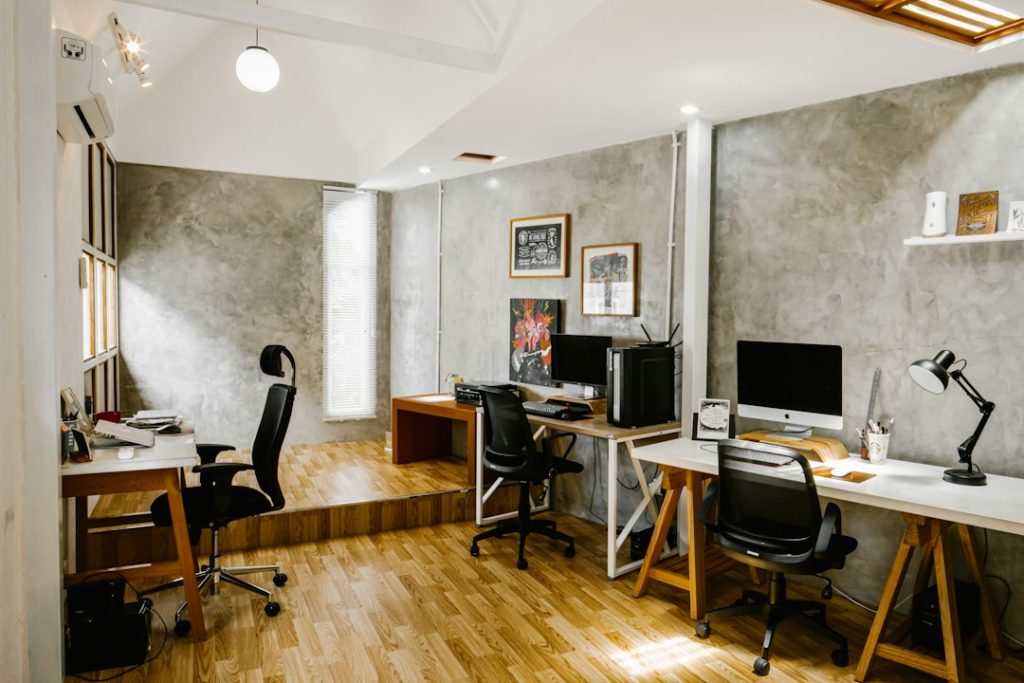
Illustrative photograph by Vitaly Gariev on Unsplash.
Give your freelance projects a consistent workspace. Compare ClovRDP’s Windows and residential options, confirm the platform and client permissions, and choose the configuration that fits your actual work.